最近,深入究了下 Obsidian 的使用,体验上提升了不少。主要涉及下面的两个插件。
Dataview 插件
Obsidian 其实有一个数据库的功能,可以对一些数据进行汇总筛选。但 Dataview 插件的功能还是要强大很多。
年初听脱不花和马伯庸的对谈,提到了写日记,我计划在 2026 年也效仿下,于是我在 Obsidian 的日记模板中添加一个栏目:今天发生了什么?每天发生的流水账就记录在这个下面。
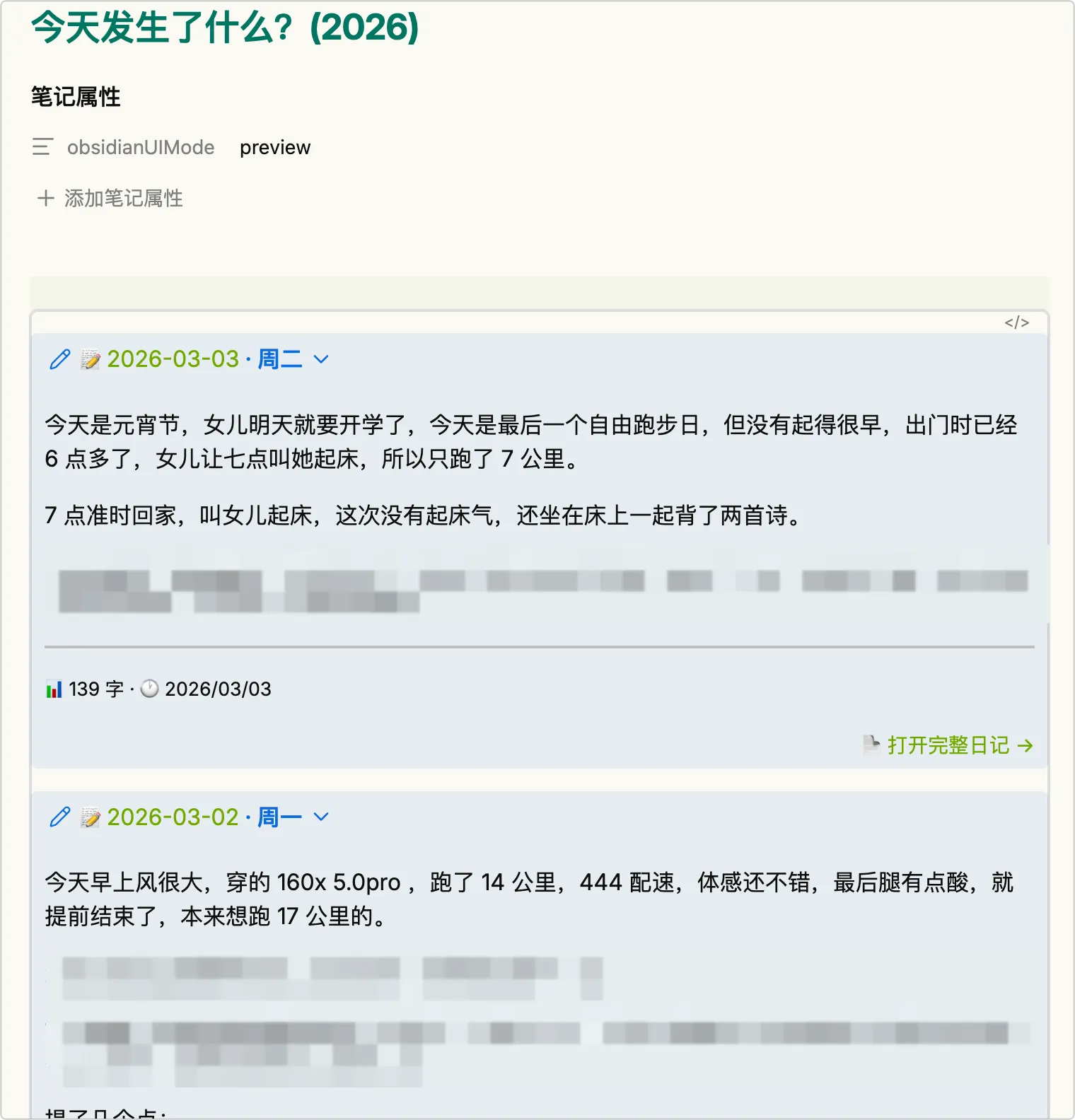
但有个问题,我怎么方便看每天都发生了什么呢?于是就用到了 Dataview 。
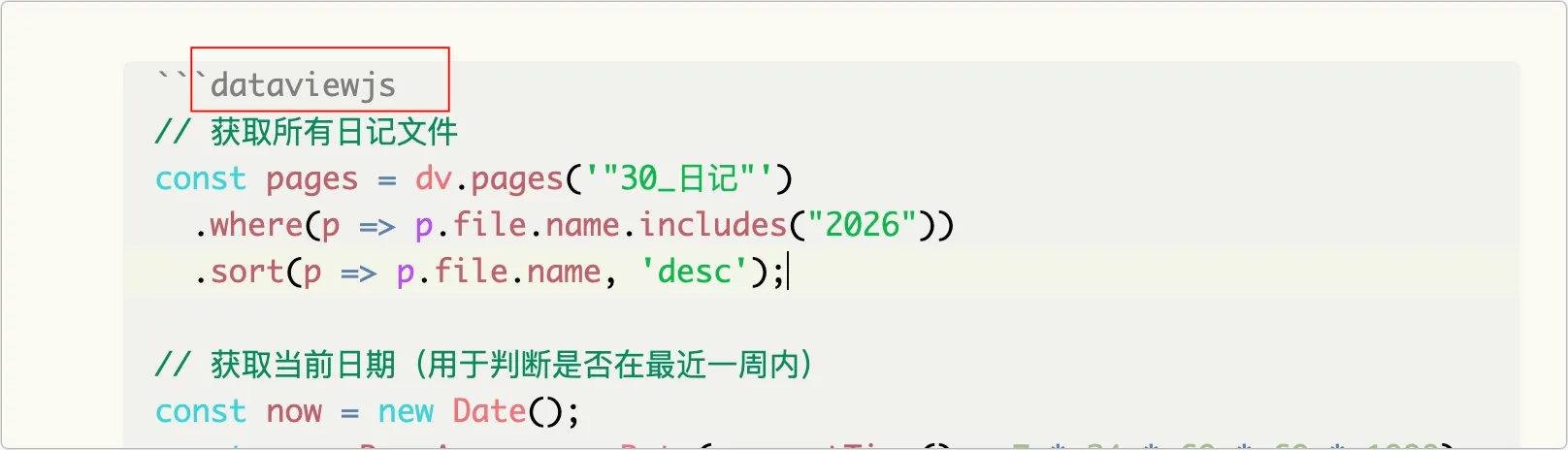
创建了一个新的笔记,名字叫:今天发生了什么? 这个笔记的内容是一段脚本:
 1
 2
 3
 4
 5
 6
 7
 8
 9
10
11
12
13
14
15
16
17
18
19
20
21
22
23
24
25
26
27
28
29
30
31
32
33
34
35
36
37
38
39
40
41
42
43
44
45
46
47
48
49
50
51
52
53
54
55
56
57
58
59
60
61
62
63
64
65
66
67
68
69
70
71
72
73
74
75
76
77
78
79
80
81
82
83
84
85
86
87
88
89
90
91
92
93
| // 获取所有日记文件
const pages = dv.pages('"30_日记"')
.where(p => p.file.name.includes("2026"))
.sort(p => p.file.name, 'desc');
// 获取当前日期(用于判断是否在最近一周内)
const now = new Date();
const sevenDaysAgo = new Date(now.getTime() - 7 * 24 * 60 * 60 * 1000);
// 遍历每篇日记
for (let page of pages) {
const content = await dv.io.load(page.file.path);
const sections = content.split(/\n## /);
for (let section of sections) {
if (section.startsWith('今天发生了什么?')) {
// 提取该部分内容
const sectionContent = section
.replace(/^今天发生了什么?\n/, '')
.replace(/\n## .*$/s, '')
.trim();
if (sectionContent) {
// 解析日期
const fileName = page.file.name;
const dateMatch = fileName.match(/(\d{4})-(\d{2})-(\d{2})/);
let displayDate = fileName;
let shortDate = fileName;
let weekday = "";
let isRecent = false;
if (dateMatch) {
const date = new Date(dateMatch[1], dateMatch[2] - 1, dateMatch[3]);
const weekdays = ['周日', '周一', '周二', '周三', '周四', '周五', '周六'];
weekday = weekdays[date.getDay()];
displayDate = `${dateMatch[1]}-${dateMatch[2]}-${dateMatch[3]}`;
shortDate = `${dateMatch[1]}/${dateMatch[2]}/${dateMatch[3]}`;
// 判断是否在最近7天内
isRecent = date >= sevenDaysAgo;
}
// 计算字数(中文字符)
const wordCount = sectionContent.replace(/[^\u4e00-\u9fa5]/g, '').length;
// 构建完整的 callout 内容
// 最近7天用 + (默认展开),其他用 - (默认折叠)
const expandSymbol = isRecent ? '+' : '-';
let calloutContent = `> [!note]${expandSymbol} 📝 [[${page.file.path}|${displayDate}]]${weekday ? ` · ${weekday}` : ''}\n`;
calloutContent += `>\n`;
// 处理内容段落
const paragraphs = sectionContent.split('\n\n');
for (let para of paragraphs) {
if (para.trim()) {
const lines = para.trim().split('\n');
for (let line of lines) {
calloutContent += `> ${line}\n`;
}
calloutContent += `>\n`;
}
}
// 底部信息栏
calloutContent += `> ---\n`;
calloutContent += `> <small>📊 ${wordCount} 字 · 🕐 ${shortDate}</small>\n`;
calloutContent += `> <div style="text-align: right; margin-top: 5px;margin-bottom: 5px;"><a href="#" class="diary-link" data-path="${page.file.path}" style="color: var(--text-accent); text-decoration: none; font-size: 0.9em;">📄 打开完整日记 →</a></div>`;
// 一次性输出整个 callout
dv.paragraph(calloutContent);
// 为所有链接添加点击事件
setTimeout(() => {
document.querySelectorAll('.diary-link').forEach(link => {
if (!link.hasAttribute('data-initialized')) {
link.setAttribute('data-initialized', 'true');
link.addEventListener('click', (e) => {
e.preventDefault();
const path = link.getAttribute('data-path');
app.workspace.openLinkText(path, "", true);
});
}
});
}, 100);
dv.paragraph("");
break;
}
}
}
}
|
注意代码块需要加上 dataviewjs
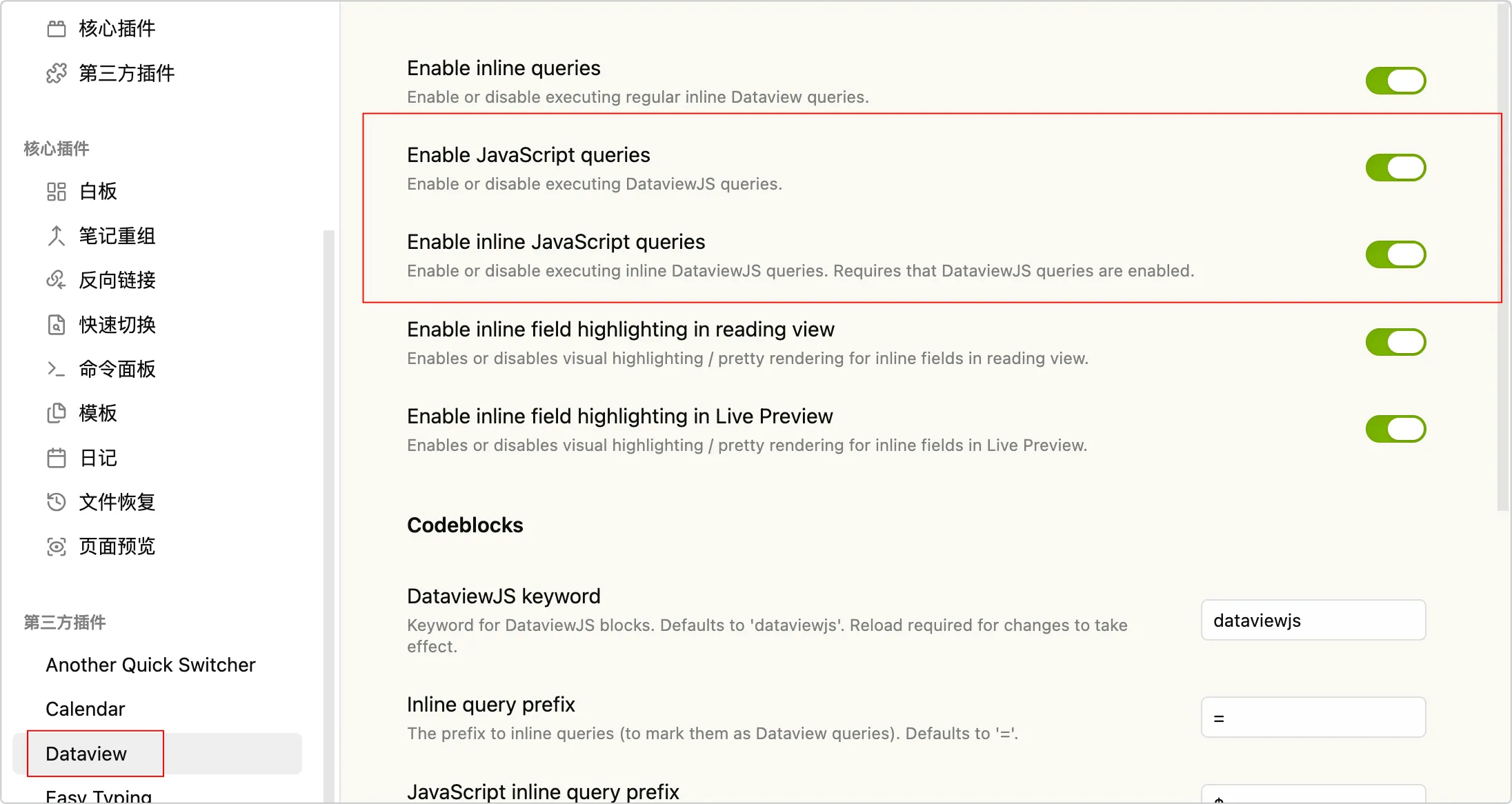
除此之外,还需要对 Dataview 插件进行配置:
最后的效果如下:
Templater
这是一个模板插件,方便写文章时进行值的预设。
比如,我在 Obsidian 中的有些文章,我会通过插件《[[插件开发:实现 Obsidian 同步到 hexo]]》同步到 hexo 的目录中,hexo 对文章的格式有要求,顶部必须有元数据信息:
---
title: <% tp.file.title %>
创建时间: <% tp.file.creation_date() %>
修改时间: <% tp.file.last_modified_date() %>
tags:
url:
categories:
topic:
---
这里面就用到了:
- 获取文件标题
- 获取文件的创建时间
- 获取文件的最后更新时间
这个内容就可以放到一个模板文件中。
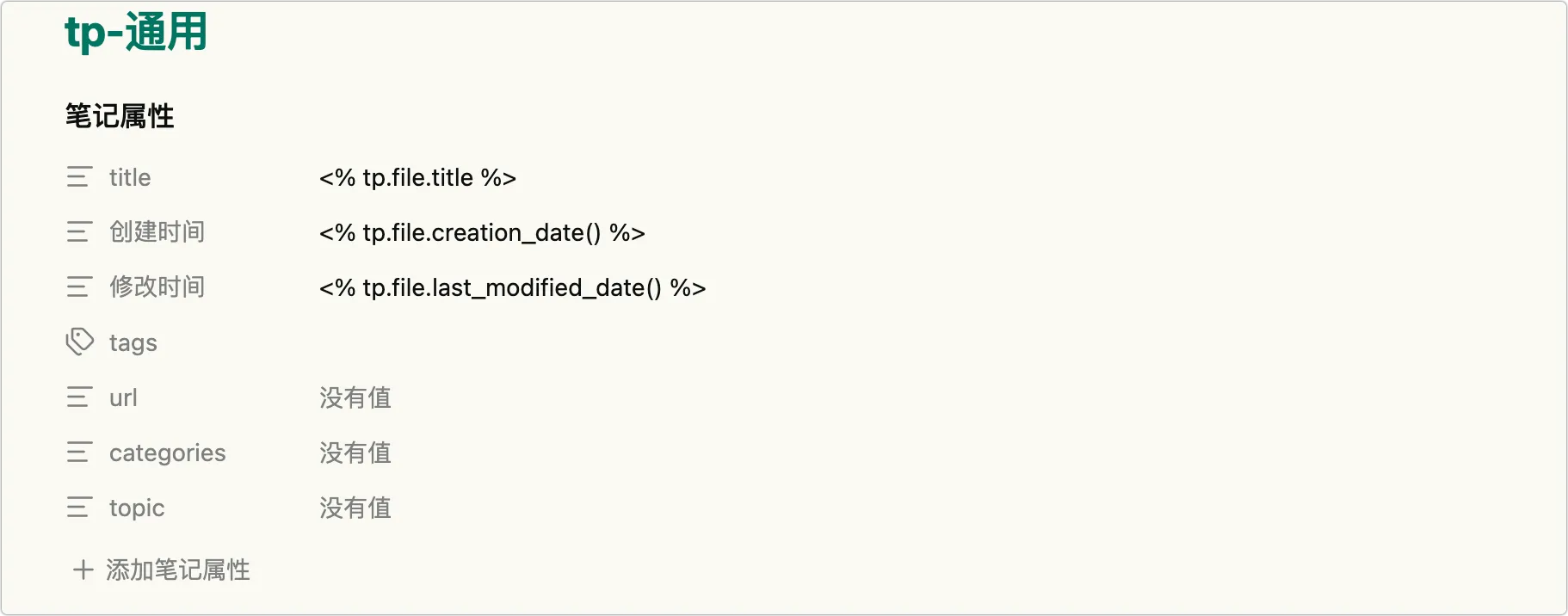
除此之外,还有一些常用的如下:
tp.date
<% tp.date.now("YYYY-MM-DD") %>
<% tp.date.tomorrow("YYYY-MM-DD") %>
<% tp.date.yesterday("YYYY-MM-DD") %>
tp.system
<% tp.system.prompt("请输入作者") %>
<% tp.system.suggester(["to-read","reading","done"],["to-read","reading","done",true,'status']) %>
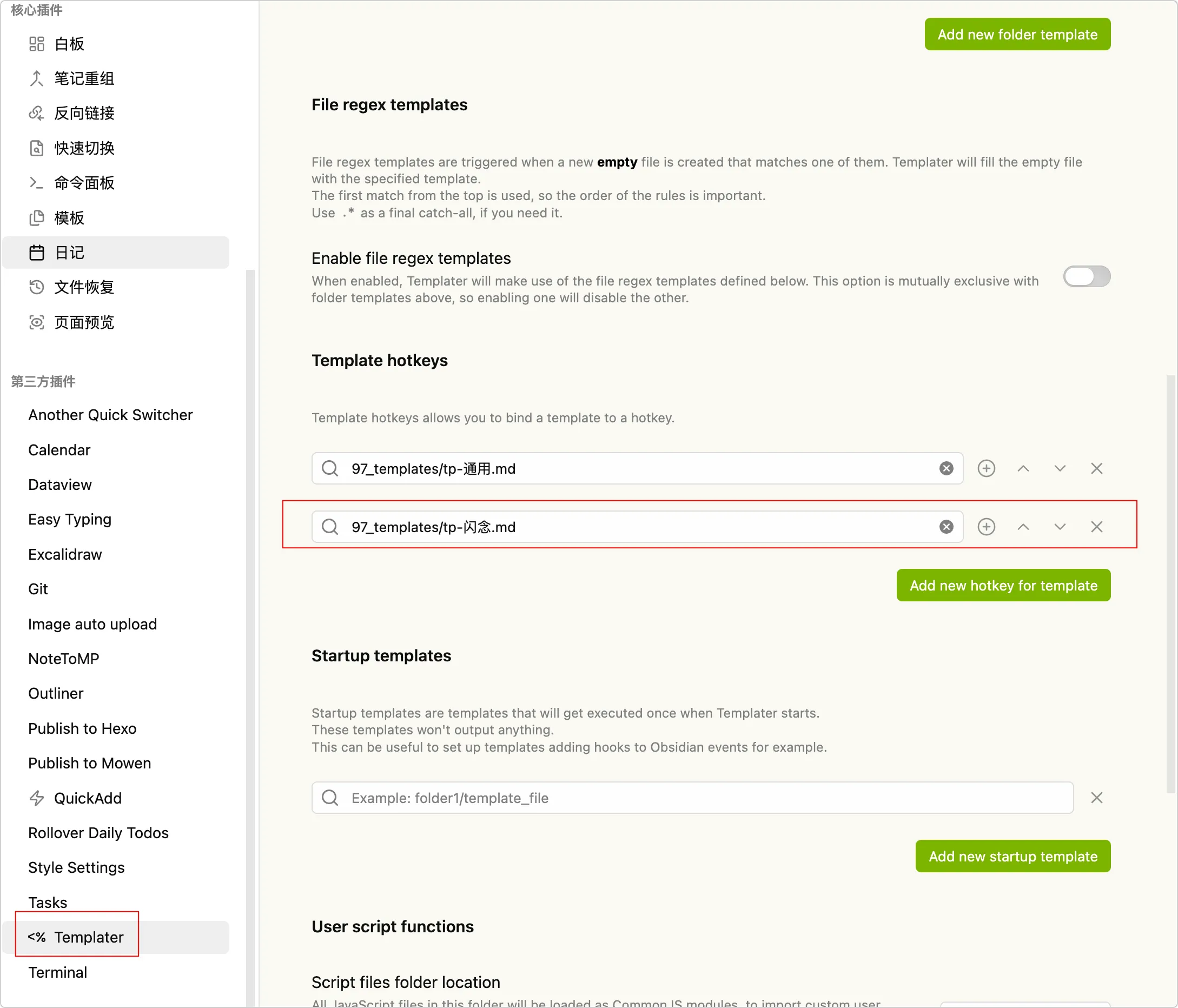
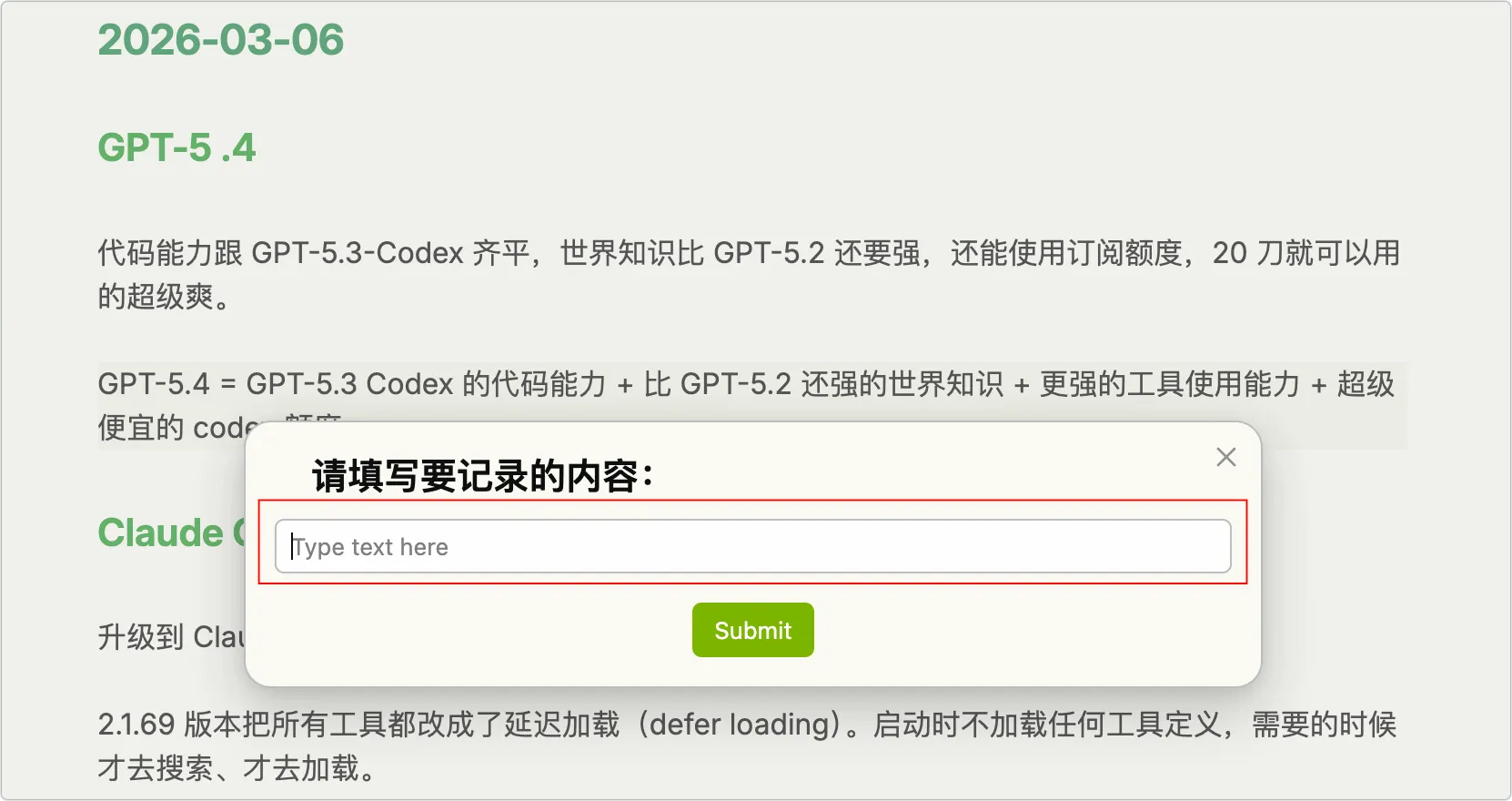
下面是利用 Templater 来记录随时想法的一个示例:
- 在 Obsidian 中的任何页面中编辑时,有一个想法想要记录
- 使用快捷键,打开一个对话框,填写想法
- 确定后,填写的内容会记录到当天的日记“今天发生了什么?” 板块
1、首先创建一个模板,内容如下:
<%*
const file = tp.file.find_tfile(tp.date.now("YYYY-MM-DD"))
if (file) {
	const loggedItem = await tp.system.prompt("请填写要记录的内容!")
	const time = tp.date.now("HH:mm")
	const content = (await app.vault.read(file)).split("\n")
	const index = content.indexOf("## 今天发生了什么?")
	content.splice(index + 1, 0, `- ${time} - ${loggedItem}`)
	await app.vault.modify(file, content.join("\n"))
} else {
new Notification("No Daily Note Found!")
}
-%>
2、添加一个快捷方式
3、在任意页面,输入快捷键就会弹出一个对话框,输入内容想法就会被记录,然后可以继续做自己的事了。
评论
评论组件按需加载,不影响文章阅读速度。